
Connect ValueCore to Salesforce Agentforce: MCP Connection Guide
1. Overview and account coverage
This guide explains how Salesforce Agentforce can call ValueCore tools to identify the connected user, find business cases, and list available business case models. Salesforce is the MCP client; ValueCore is the remote MCP server.
The administrator procedure uses a Custom external credential containing a ValueCore user access token. It combines Salesforce’s advanced server-registration pattern with its custom-header authentication. Validate the complete connection in your org using the checks in this guide before activating the agent for company use.
Individual and enterprise accounts
| Account model | What this guide covers |
|---|---|
| Salesforce company org | Enterprise, Performance, Unlimited, or Developer Edition with the Agentforce features and licenses required for the chosen agent type. |
| Individual developer | A Developer Edition org can be used for evaluation when the required Agentforce features are provisioned. It is still a Salesforce org, not a personal chatbot subscription. |
| ValueCore user in a company | The stored token identifies one ValueCore user and organization. Their visualizers remain owner-scoped. |
| Shared company access | All users of this connection act through the designated ValueCore user. Use an approved integration identity and restrict the agent audience accordingly. |
| Separate identity for every employee | Not provided by this shared-token procedure. Ask ValueCore to design and validate a separate per-user authentication integration before requiring individual ownership or auditing. |
A Salesforce administrator role does not grant additional ValueCore record access. Salesforce sharing rules do not replace the identity and ownership checks applied by ValueCore.
Completion criteria
The server discovers the intended ValueCore tools; the agent makes real tool calls; whoami returns the approved identity; and list_visualizers returns that user’s records or a valid empty result. A saved form, successful public-server connection, or conversational answer alone does not meet these criteria.
Salesforce reference for editions and registration
2. Prepare accounts and production URLs
1. Confirm the Salesforce org. Sign in to your company’s Salesforce My Domain and open Setup in Lightning Experience. Confirm the org and current user before creating credentials. The screenshots show a Developer Edition org; use your own company domain for deployment.
2. Confirm Agentforce access. Your Salesforce administrator must provision the agent’s required licenses and permissions, including Manage AI Agents. Credential administration requires Manage Named Credentials or Customize Application. If Agents is missing, verify Einstein Generative AI and Agentforce enablement before proceeding.
3. Choose the ValueCore identity. Agree which ValueCore user will own the connection and which company users may use it. Check that this user belongs to the correct organization and has the required business cases and models.
4. Open MCP Access. Sign in to the production ValueCore application as that user. Open the full URL below and obtain the personal access token through the MCP Access page. Keep it in an approved credential store until entered into Salesforce; do not put it in agent instructions or this guide.
https://www.visualize-roi.com/vr/user/mcpaccess
Production server endpoint
https://api.visualize-roi.com/mcp/sse
Use this exact URL, including /mcp/sse. It supports Streamable HTTP despite the path name. The MCP Access page URL is for people; it is not the server endpoint.
Choose the correct credential
Use a ValueCore user access token as the bearer credential. An organization API key beginning with vcmcp_ is not a substitute for that token. Organization keys require a separate token-exchange integration and an explicit acting user.
ValueCore’s published OAuth configuration supports authorization-code flow. Do not enter the personal token as an OAuth Client Secret or assume that the Salesforce client-credentials wizard performs the interactive sign-in used by Claude.
https://api.visualize-roi.com/.well-known/oauth-authorization-server
Salesforce Agentforce enablement instructions
3. Locate the Salesforce MCP registry
1. Open Setup. If Salesforce Classic is open, select Switch to Lightning Experience. Then open Setup.
2. Find the registry. Enter Agentforce in Quick Find and press Enter. Under Agentforce Registry, select Registered MCP Servers. In other releases the entry can be named MCP Servers.
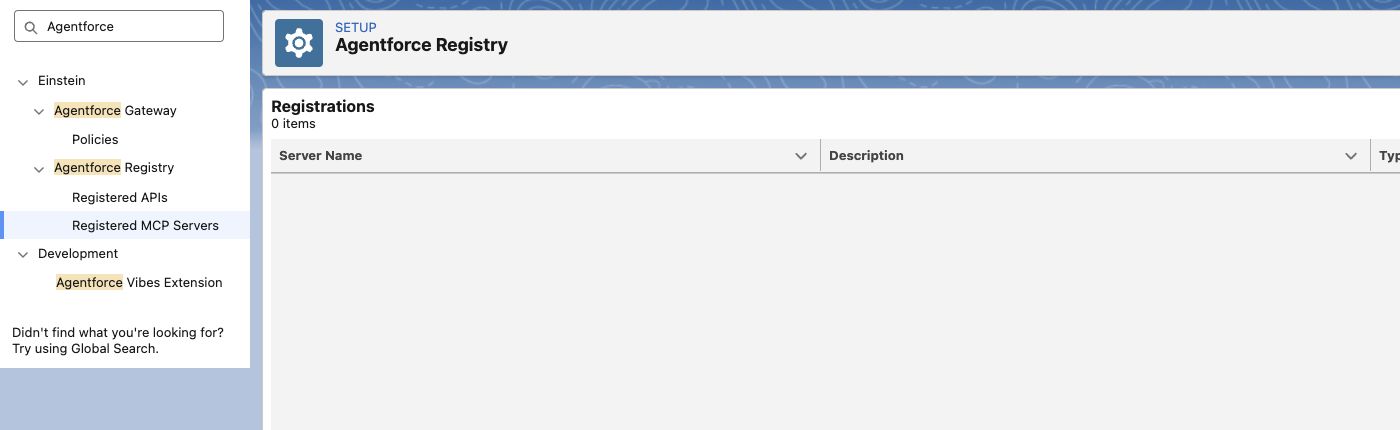
Figure 1. Registered MCP Servers in the signed-in Salesforce Developer Edition org.
3. Inspect the new connection form. Select New, then Register MCP Server. The form contains the server name, description, server URL, and authentication method.
4. Use the advanced setup sequence. The standard form offers OAuth 2.0 and No Authentication. ValueCore requires authentication for discovery. Cancel this form and follow the next section to establish the registration before configuring the ValueCore credential.
If setup entries are missing
Ask the Salesforce administrator to check feature availability, assigned permissions, and the selected org. Seeing Registered MCP Servers does not by itself confirm that an Agentforce agent can be built or run in the org.
4. Establish the server registration
Salesforce documents a temporary public-server registration as a starting point for advanced authentication. Use it only to create the registration and associated credentials. Do not enter a ValueCore token while the endpoint still points to the public server.
1. Create the temporary registration. In Registered MCP Servers, select New and Register MCP Server. Name the registration ValueCore. Add a description indicating that the endpoint will be changed to ValueCore before use.
2. Use a trusted public bootstrap endpoint. For the temporary Server URL, use Salesforce’s public Trailhead MCP endpoint below and select No Authentication. Select Create and Continue. Allowlist no tools and apply no policies; finish the registration. If your org requires a tool selection, stop and use the metadata alternative below.
https://mcp.trailhead.salesforce.com/mcp
3. Locate the generated credentials. Open the registration’s Authentication Details and follow its Named Credential link. Record the actual external credential API name. Preserve these linked records rather than creating unrelated duplicates.
4. Replace the endpoint before adding a secret. Edit the linked Named Credential. Turn off Enabled for Callouts, replace its URL with https://api.visualize-roi.com/mcp/sse, and save. Verify the saved URL. If the registry has a separately editable server URL, update that to the same ValueCore endpoint too.
Alternative for administrators who deploy metadata
If public bootstrap is not permitted, a Salesforce developer can establish the MCP registration through the supported ExternalCredential, NamedCredential, ExternalServiceRegistration, and PermissionSet metadata. Configure Custom authentication and the ValueCore endpoint before discovery. Use Salesforce’s current metadata examples and deployment process; do not deploy an OAuth client-credentials example unchanged for ValueCore.
Salesforce MCP registration metadata examples
Salesforce advanced registration and placeholder pattern
Salesforce public Trailhead MCP endpoint reference
5. Understand the standard connection form
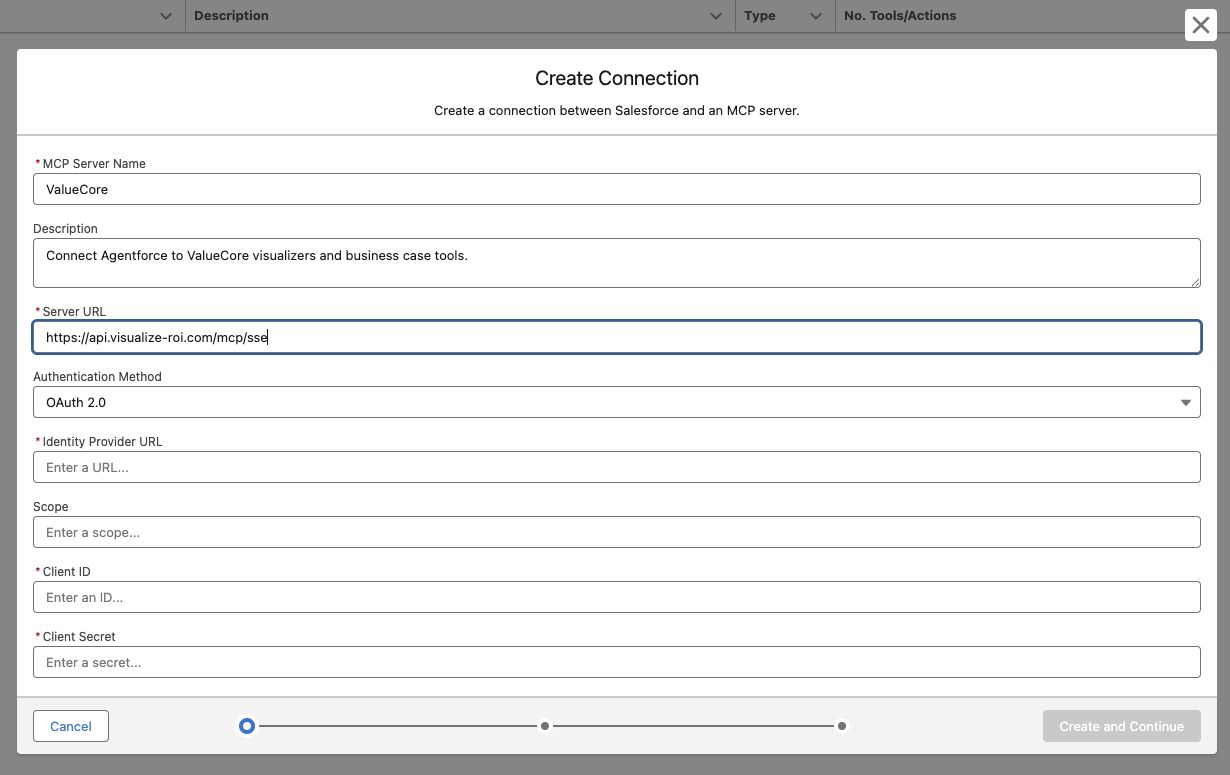
Figure 2. Actual Salesforce form with the production ValueCore URL entered. The form is unsaved and does not demonstrate a working OAuth connection.
The Identity Provider URL, Client ID, and Client Secret fields belong to Salesforce’s OAuth option. Leave this route unused for the shared access-token configuration. The ValueCore production URL in the screenshot is the final endpoint, not the temporary bootstrap URL.
Continue with the linked external credential on the following page. Keep callouts disabled until the endpoint, secret storage, and Authorization header are all correct.
6. Configure the ValueCore credential
1. Open the linked external credential. From the registry’s Named Credential, follow the External Credential link. Edit that record and select Custom as the Authentication Protocol. Preserve its API name and registration relationship, then save.
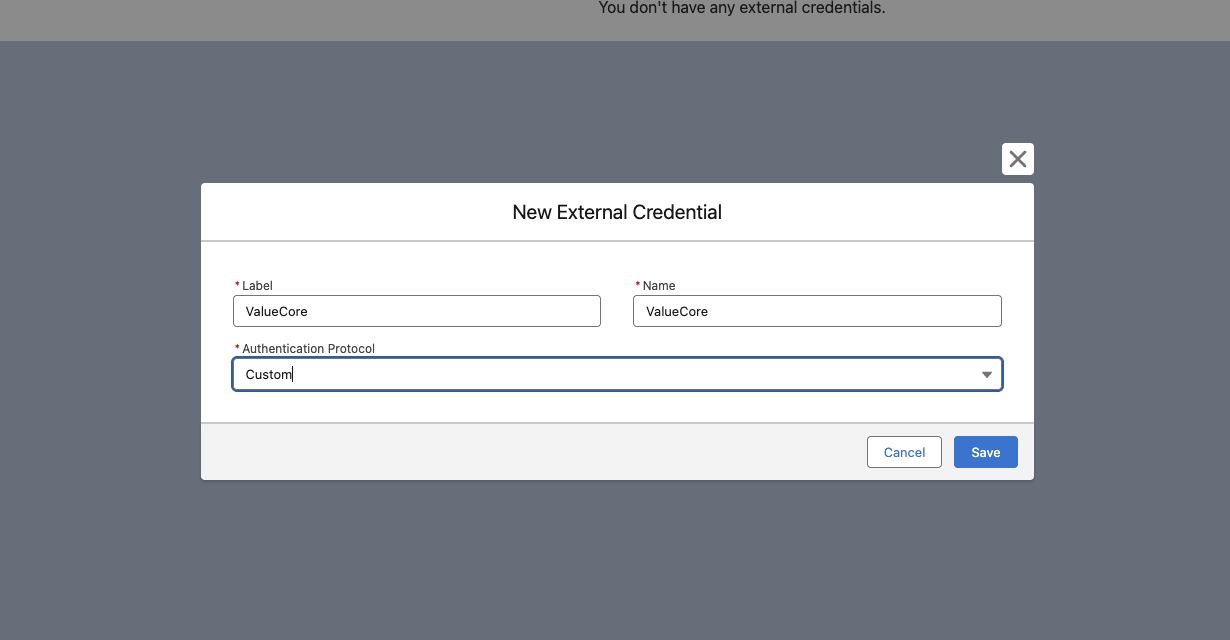
Figure 3. Salesforce Custom authentication selection. This unsaved New form illustrates the fields; edit the linked credential created for the registration.
2. Create or update the principal. In Principals, create or edit the named principal. Use the registration’s existing principal name when present; otherwise use ValueCoreUser with sequence 1. Set the authentication parameter name to AccessToken and its value to the approved ValueCore user token, without the Bearer prefix. Save.
3. Confirm access to the principal. Keep the generated registration management permission set assigned to the administrator. If you replaced the principal, update its External Credential Principal Access mapping. Review the agent’s execution identity and test runtime access with the intended user.
The token is shared through a Named Principal. Do not describe this as a separate ValueCore sign-in for each Salesforce employee. Keep the credential value out of screenshots, logs, source control, prompts, and support messages.
Salesforce Custom external credential and principal setup
7. Configure the Authorization header
1. Add the custom header. On the linked external credential, find Custom Headers and select New. Set Name to Authorization, Sequence Number to 1, and Value to the formula below. Replace ValueCore with the actual external credential API name if it differs.
Header formula:
{!'Bearer ' & $Credential.ValueCore.AccessToken}
Use straight quotes. The space after Bearer is required. The formula references the protected AccessToken parameter; do not paste the token directly into the header formula.
2. Check the named credential. Open the linked Named Credential and edit it. Confirm the production endpoint and linked Custom external credential. Clear Generate Authorization Header and select Allow Formulas in HTTP Header. Leave formulas in the body off unless separately required. Save.
3. Enable callouts. Verify again that the saved endpoint is https://api.visualize-roi.com/mcp/sse. Only then turn Enabled for Callouts on. The public bootstrap server must no longer be the destination when the bearer credential becomes usable.
Header configuration review
| Setting | Required value |
|---|---|
| Header name | Authorization |
| Secret parameter | AccessToken on the linked external credential |
| Header value | Bearer followed by one space and the stored token |
| Generate Authorization Header | Off |
| Allow Formulas in HTTP Header | On |
| Final destination | https://api.visualize-roi.com/mcp/sse |
Salesforce custom header configuration
8. Review the endpoint settings
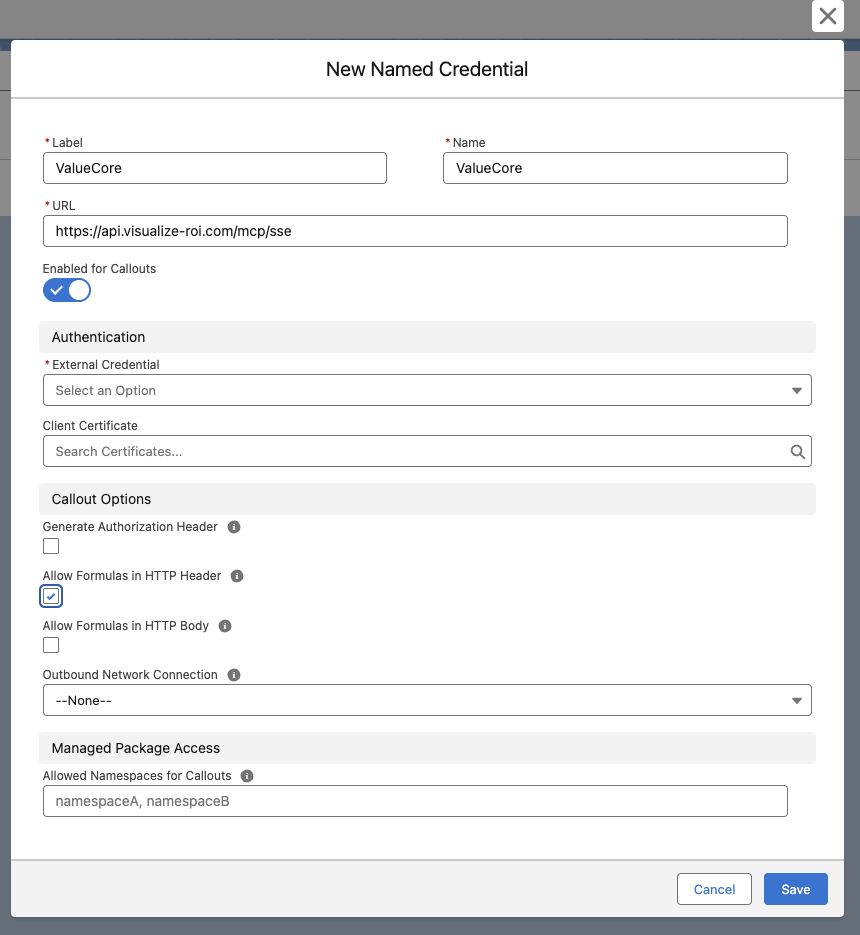
Figure 4. Actual Salesforce named credential form showing the production URL and header options. Select the linked external credential before saving.
When editing the registration’s generated credential, preserve its linked external credential. The illustration uses an unsaved New form to show the settings and therefore has no external credential selected.
9. Enable tools and configure the agent
1. Discover ValueCore tools. Return to Registered MCP Servers and open ValueCore. Refresh the connection or tool list using the controls shown in your org. Confirm that discovery succeeds against the production ValueCore endpoint. A remaining Trailhead tool list is not a ValueCore connection.
2. Allow the initial tools. In Tools, select Manage Tools and allow whoami, get_instructions, list_visualizers, and list_visualizer_types. Save. Keep write and sharing tools out of the initial evaluation.
3. Add actions to a draft agent. Open your agent in Agentforce Studio. Create a draft if needed. In Explorer, use the plus control for the appropriate subagent, select Add from Asset Library, and choose the ValueCore MCP actions. Save. The legacy builder uses its topic or subagent action list instead.
4. Add reasoning instructions. Use the instructions below and adjust the approved identity and audience to your company. The action must be added to the agent, not merely visible in the registry.
Agent instructions:
Use ValueCore tools for requests about ValueCore identity, business cases, and business case models. Call whoami before retrieving records and confirm the expected company identity. Use list_visualizers to find existing cases and list_visualizer_types to list available models. Retrieve get_instructions for company guidance. Report actual tool results and include returned ValueCore links. Do not claim a successful connection without a successful tool call. During evaluation, do not create, update, share, or export anything.
5. Review the test mode. Use live execution for the read-only verification on the next page. A simulated response does not verify the external connection. Do not activate the agent for the company until the checks pass.
Salesforce instructions for adding MCP actions
10. Verify the ValueCore connection
Open the agent’s test conversation with live tool execution. Review the action activity and raw result, rather than relying only on the assistant’s wording. Run the following checks in order.
Check 1 Confirm the acting identity
Prompt to send:
Use only the ValueCore whoami tool. Tell me the ValueCore user name and organization name returned by the tool. Do not create, update, share, or export anything.
Pass: A real whoami action succeeds and returns the approved ValueCore user and organization. For this shared credential, different Salesforce users should see the same designated ValueCore identity. If the identity is unexpected, stop before retrieving business data and correct the stored credential.
Check 2 List existing visualizers
Prompt to send:
Use the ValueCore list_visualizers tool to list my recent visualizers. Show each name and its returned ValueCore link. Do not create or change anything.
Pass: The tool succeeds with the designated user’s visualizers or a valid empty list. Open one returned link, when available, and verify it is the expected business case. Empty results can be correct because visualizers are owner-scoped. A 401, timeout, or response without a tool call fails this check.
Check 3 Confirm organization guidance and models
Prompt to send:
Call ValueCore get_instructions and list_visualizer_types. Summarize the organization guidance and list the business case models available to the connected user. Do not create anything.
Pass: Both actions complete without an authentication error and return the expected organization guidance and available models. Model availability is organization-scoped; an empty result should be reviewed with the ValueCore administrator.
Record the outcome
Record the date, Salesforce org, agent version, tester, returned ValueCore identity, action names, and pass or fail. Store no token or customer business case content in the test log. Repeat the checks in the intended channel with a second authorized user before rollout.
11. Roll out and maintain company access
1. Approve the intended audience. Confirm that every intended agent user may access the designated ValueCore user’s business cases. Keep the agent restricted to the approved company audience; do not expose this shared identity through a public service channel.
2. Release the tested version. After all checks pass, commit and activate the agent version using your company’s Salesforce release process. Repeat whoami and list_visualizers in the actual delivery channel. Retain a rollback version.
3. Expand capabilities deliberately. If business workflows need write tools, review each tool and add it to the registry and agent separately. For example, create_visualizer creates a case, set_input_values changes inputs, and share_visualizer creates a shareable result. Define when user confirmation is required before enabling these actions.
4. Maintain the credential. Assign an owner for token expiry, replacement, and incidents. To replace a token, update the protected AccessToken parameter and rerun the verification checks. Disconnecting Salesforce does not necessarily invalidate a ValueCore token that was copied elsewhere; contact ValueCore for token invalidation when needed.
5. Remove access when required. Disable the relevant agent access or named credential callouts, remove the MCP actions from affected agents, and review the registration permissions. Coordinate with ValueCore before retiring the acting user or changing its access.
Useful everyday prompts
Prompt to send:
List the ValueCore business case models available to the connected organization. Do not create a case.
Prompt to send:
List recent ValueCore visualizers and include the links returned by the tool.
Prompt to send:
Tell me which ValueCore user and organization this Salesforce agent is connected as.
12. Resolve connection problems
| Symptom | What to check |
|---|---|
| No Registered MCP Servers entry | Selected org, Lightning Experience, feature provisioning, and Manage AI Agents permissions. |
| OAuth setup asks for Client ID and Client Secret | Use the advanced Custom credential procedure for the ValueCore user token. Do not place the token in Client Secret. |
| 401 or unauthorized | Saved endpoint, valid user token, Authorization formula, exact credential API name, principal parameter, and header options. |
| 403 or credential access error | Registration management permission set, principal mapping, agent execution context, and ValueCore account access. |
| Only Trailhead tools appear | The registration still references the bootstrap endpoint or needs tool discovery refreshed after the endpoint change. |
| Connected registry but no action executes | Add the MCP actions to the draft agent, check instructions and live test mode, and test the intended agent version. |
| Wrong user or organization | Stop business-data calls and replace the credential with the approved ValueCore user token. |
| Empty visualizer list | Confirm whoami first. The acting user may own no matching visualizers; models and visualizers have different scopes. |
| Timeout or rate limit | Retry after the indicated wait. Avoid repeated loops. Record the time and failing tool for support. |
Contact ValueCore
Send your Salesforce edition, failing step, exact error, time and time zone, and the ValueCore user and organization names to support. Exclude tokens, passwords, and customer records.
Salesforce screens and feature labels can vary by release and assigned permissions. Review connection behavior after changing credentials, agent versions, or company access policies.