
Connect ValueCore to Gemini Spark: MCP Connection Guide
1. Overview
Audience Eligible personal Google accounts
Connect ValueCore through Gemini Spark using an eligible personal Google account. Google currently excludes work and school accounts from Spark custom MCP apps. The steps and screenshots in this guide therefore describe the personal-account flow.
For Google Workspace organizations, this is not an enterprise deployment procedure. Do not switch to a personal account to bypass a company restriction. Ask your administrator to choose an approved client or assess a separate enterprise integration.
ValueCore calls an individual ROI business case a visualizer. Your connection acts as the ValueCore user who signs in; existing visualizers are limited to that user’s own records.
2. Check availability first
Google requires an eligible personal account, Spark access, age 18 or over, US availability, English, and Keep Activity enabled. Confirm these requirements and your organization’s approval for the intended business data before continuing.
| Setting | Value |
|---|---|
| Setup location | Gemini web app → Connected Apps → Custom apps for Spark |
| MCP server URL | https://api.visualize-roi.com/mcp/sse |
| OAuth client fields | Leave blank for the standard ValueCore registration flow |
Step 1: Open Connected Apps
On your computer, open Gemini and sign in to the approved account. Open Settings or Settings and help. Choose Connected Apps; if it is nested, open Personal Intelligence first. Find Custom apps for Spark.
Step 2: Enter the ValueCore URL
In Add a custom app link to get started, paste the complete ValueCore MCP URL and select Next. If other custom apps already exist, choose Add a custom app first.

Figure 1. Custom apps for Spark with the ValueCore MCP server URL entered.
3. Review the custom app settings
Step 3: Check the server address
Confirm the URL is exactly the address below. Keep the /mcp/sse path. This is ValueCore’s hosted MCP endpoint, not your ValueCore dashboard address.
https://api.visualize-roi.com/mcp/sse
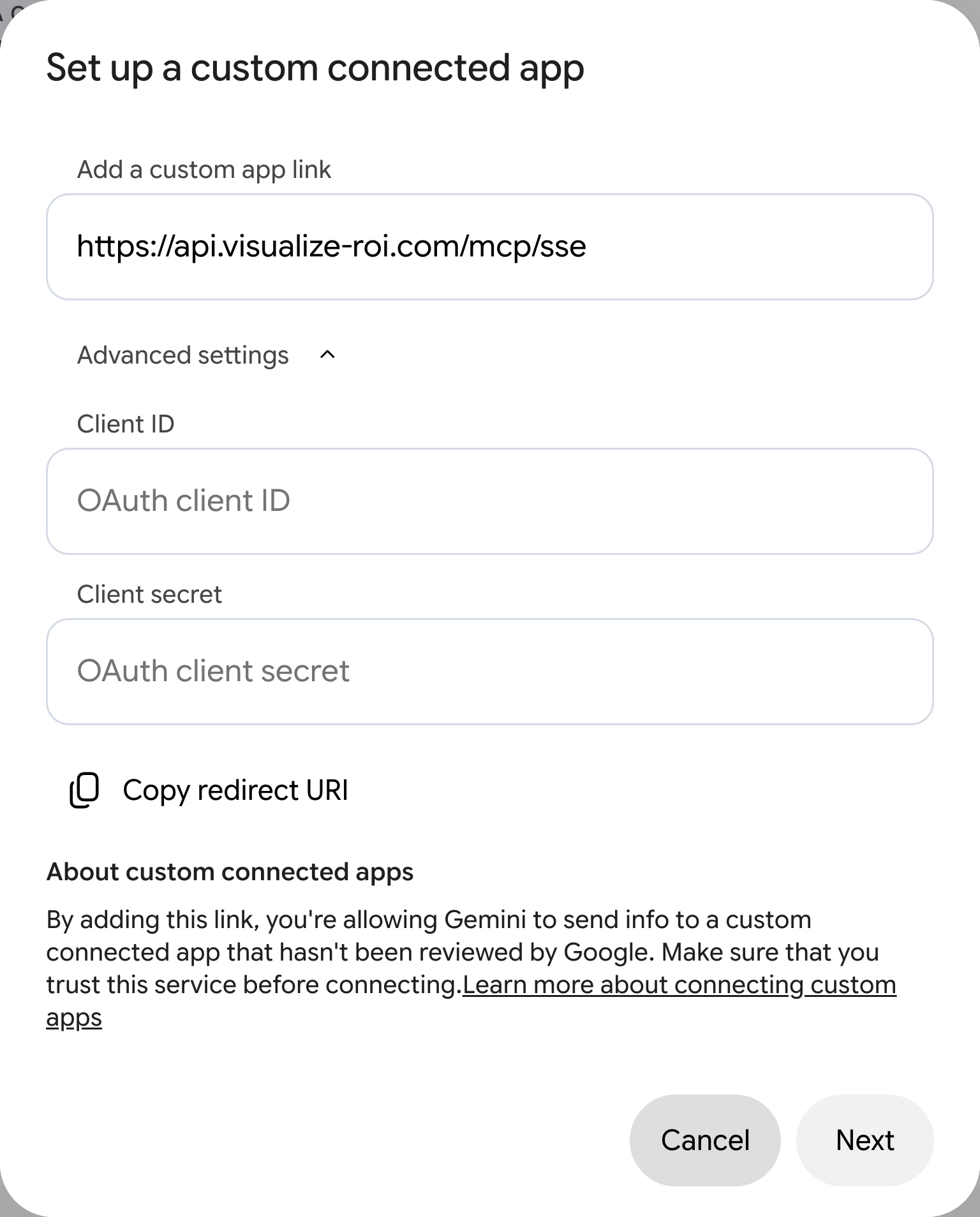
Figure 2. Gemini custom app setup with Advanced settings expanded and OAuth fields left blank.
Step 4: Leave optional client credentials blank
ValueCore supports dynamic client registration. The standard flow does not require you to enter a Client ID or Client secret here. Select Next. Only use manual values when ValueCore explicitly supplies them for your integration; never paste a personal access token into Client secret.
4. Review consent and authorize ValueCore
Step 5: Review the connection request
Read the Connect this MCP server dialog and verify both the Google account and ValueCore URL. Review the access described. If you are authorized to connect this account, select the acknowledgment checkbox and then Connect. Otherwise cancel and consult your organization’s administrator.
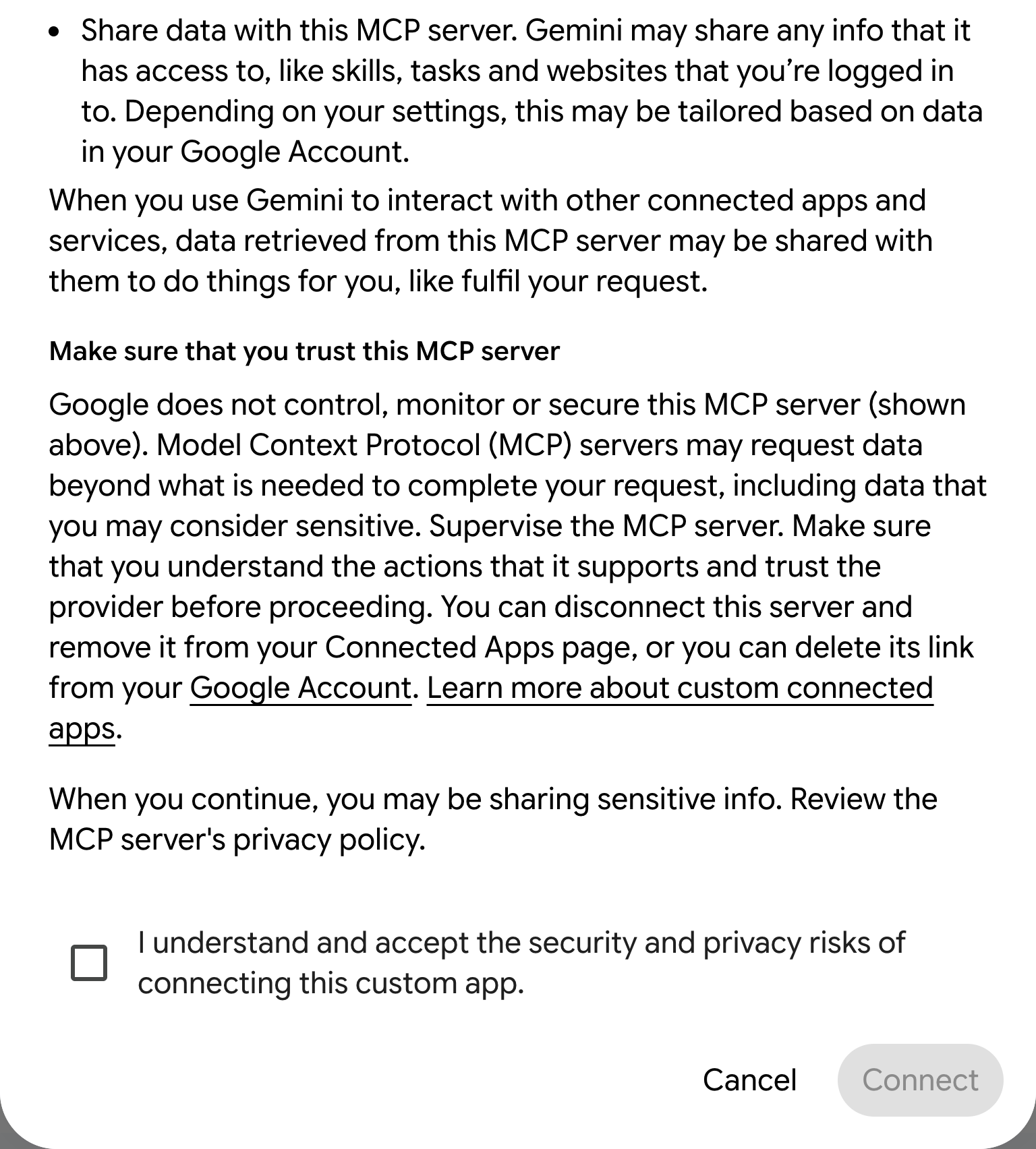
Figure 3. The lower part of Gemini’s consent dialog with the acknowledgment and Connect controls.
Step 6: Complete the ValueCore sign-in
Follow the ValueCore authorization prompt. Use your ValueCore username and password. If you use single sign-on, obtain your personal Access Token as described on the next page and paste it into Access token on the ValueCore authorization page. Do not use your Google password as your ValueCore credential.
5. Finish sign-in and verify the connection
Step 7: Use the personal token option for single sign-on
For single sign-on, sign in to your organization’s usual ValueCore website in another tab. In the account menu, open MCP Server Access (called AI Agent Access in some interfaces). Under Access Token, select Generate, then Copy. Return to the ValueCore authorization page, paste the token into Access token, and finish sign-in. Use your own personal token; do not use Organization API Key.
For accounts using www.visualize-roi.com, the direct access page is https://www.visualize-roi.com/vr/user/mcpaccess. If your company uses a different ValueCore hostname, use its account-menu link instead. If the option is missing, ask your ValueCore administrator for the correct access page.
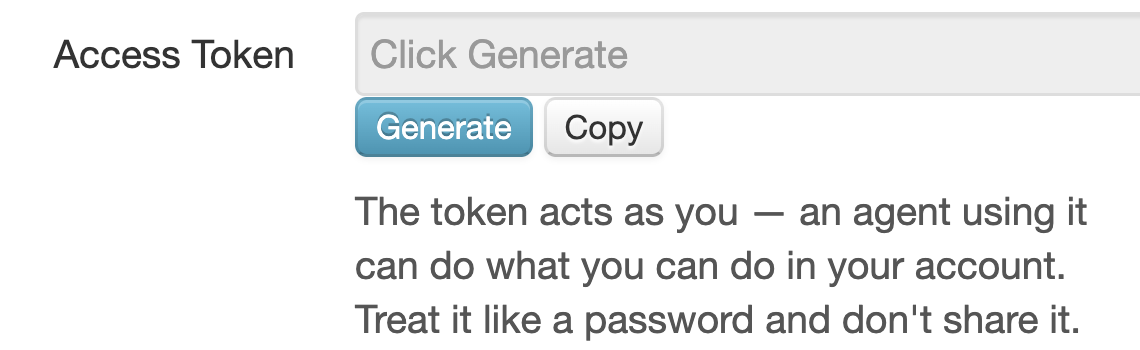
Figure 4. ValueCore’s personal Access Token controls. No token is shown in this screenshot.
Step 8: Open Spark and select ValueCore
Return to Gemini and confirm the custom app is connected and enabled. On the sidebar, select Switch to Spark. Start a task, type @ in the prompt, and select the connected ValueCore app. Its displayed name may follow the server’s name. Continue with the three checks in Verify your ValueCore connection.
6. Verify your ValueCore connection
Run these read-only checks after authorization and whenever you reconnect or change accounts. Open Spark and select the connected ValueCore app with @.
Check 1: Confirm who you are
Copy and send this prompt:
Open the Spark task’s work panel and inspect its activity for the ValueCore call. Select the whoami tool activity when available and compare the returned user and organization. If tool details are hidden, ask Spark to quote the identity returned by the actual whoami call.
Prompt to send:
Use only the ValueCore whoami tool. Tell me my ValueCore username and organization name. Do not create, update, share, or export anything.
Pass: The activity or tool details show whoami, and its result matches your expected ValueCore user and organization. Your assistant login and ValueCore identity may differ. If the wrong ValueCore account appears, reconnect before reading business data.
Check 2: List your visualizers
Prompt to send:
Use the ValueCore list_visualizers tool to list my recent visualizers. Show each name and its ValueCore link. Do not create or change anything.
Pass: The tool returns your own business cases, or completes successfully with an empty list. An empty list is valid when you own no matching visualizers. An authorization error, timeout, or answer without a tool call is not a successful check. If at least one result is returned, open one link and confirm it is the expected case. If the list is empty, continue to Check 3.
Check 3: Confirm available models
Prompt to send:
Use ValueCore get_instructions and list_visualizer_types. Summarize my organization’s instructions and list the business case models available to me. Do not create anything.
Pass: Both tools respond without an authentication error. Confirm that the models are appropriate for your organization. If no models are available, contact your ValueCore administrator.
After verification
You can now use the examples in the following section. Recheck whoami whenever you change connections. Spark custom apps currently use eligible personal Google accounts; this procedure does not enable Google Workspace organization deployment.
7. Use ValueCore in your daily work
Start with a read request. When you are ready to make changes, identify the exact business case and review the proposed inputs. Replace the example names below with your own names; the prompts are examples, and results will reflect your own data.
Step 9: Find an existing business case
Ask for your own recent records or search by a business case name. The examples below use list_visualizers and find_visualizer_by_name.
Prompt to send:
Use the ValueCore list_visualizers tool to list my recent business cases with their names and links. Do not change anything.
Find my ValueCore business case with Acme in the name. If several match, show the choices before selecting one.
Step 10: Inspect and explain results
Select the matching business case before asking for its inputs, assumptions, or output values. Ask for a specific section when a model is large.
Prompt to send:
For the business case I selected, show the current inputs and calculated outputs in its ROI section. Explain the assumptions and include the link to open it in ValueCore. Do not modify values.
Step 11: Create or update a business case
Choose either creation or an update to an existing case. Review the case identity and proposed values before confirming a change. Replace bracketed examples with your actual field names and values.
Prompt to send:
Help me create a business case named Acme Evaluation. First, list the suitable ValueCore models and ask me to select one. Then show the proposed inputs and ask me to confirm before creating or updating anything.
To update an existing case, use this separate request:
Prompt to send:
Find my business case named Acme Evaluation. If several match, ask me to select one. Show its current inputs, then propose changing [input name] to [new value]. Ask me to confirm the case and changes before updating it. After confirmation, report accepted and rejected inputs and read the calculated results. Do not create, share, or export a case.
For percentage inputs, 20 means 20%, not 0.2. Use plain numeric currency amounts without symbols. Ask the assistant to report accepted and rejected inputs and then read the calculated outputs. A partially rejected update is not a complete success.
Step 12: Prepare a share link or PowerPoint
Review the calculated results first. Sharing creates a customer-facing snapshot and a new link; later input changes do not update that snapshot. Exporting starts a PowerPoint generation job.
Prompt to send:
Export the reviewed business case to PowerPoint once. Check the existing export job until it completes and return its download link. Do not create a share link.
Keep the job identifier if an export is still processing. Ask for its status rather than starting duplicate exports. Give a customer-facing share link only when you intend others to open that snapshot.
To create a share link instead of a PowerPoint, use this separate request:
Prompt to send:
Show the name and link of the business case we reviewed and ask me to confirm creating a customer-facing share snapshot. After I confirm, call share_visualizer once and return the share link. Do not send the link to anyone or export PowerPoint. Explain that later edits to the original case do not update this snapshot.
8. Troubleshooting and access management
| What you see | What to do |
|---|---|
| No Spark or Custom apps | Work and school accounts are currently unsupported for Spark custom apps. For personal accounts, check Spark access, age, US availability, language, and activity requirements. |
| Connection unavailable | Check that Keep Activity is enabled and that the account is eligible. Follow your organization’s policy before changing activity settings. |
| Asked for Client ID or secret | Leave optional fields blank for ValueCore’s dynamic registration flow. If they become mandatory, ask support to inspect the failure. |
| Consent cannot continue | Read the full dialog and review the acknowledgment. Continue only when the account and access are authorized. |
| Sign in fails | Use the ValueCore identity. For single sign-on, use Access token on the ValueCore authorization page, not Gemini’s Client secret field. |
| Gemini does not call ValueCore | Use Spark, confirm the app is enabled, and select it with @. Ask for whoami explicitly. |
| No matching business cases | Confirm whoami and search by a shorter search term. The connection sees the authenticated user’s own visualizers. |
9. Disconnect or change accounts
Open Connected Apps and find ValueCore under Custom apps for Spark. Turn it off to stop its use. For account unlinking or removal, open More details and choose Disconnect or Remove app, then follow the confirmation. Reconnect with the intended ValueCore account and repeat whoami.
Disconnecting the assistant does not delete business cases or undo prior changes, shares, or exports. Treat a personal token as a password. If it may have been exposed, contact ValueCore support; removing a connector is not a promise that the underlying token has been invalidated.
10. Get help
Contact support@valuecore.ai with the name of the AI assistant you are using, your organization, the step that failed, the exact error, and the time it occurred. Include a screenshot with credentials and customer data hidden. Never send passwords, access tokens, or authorization codes.
Learn more: Google guidance on custom apps for Gemini Spark
Screenshots show a personal Google account. Google’s current Spark custom-app requirements exclude work and school accounts; there is no corresponding Workspace administrator enablement step in this guide. Guidance reviewed September 9, 2026.